

How do I start a new conversation?
You can start a new conversation from the inbox in the Saysimple platform. This is useful when you want to contact a customer proactively, before they have sent you a message.
In this article, we explain how to start a new conversation in the Saysimple platform.
For WhatsApp conversations, the first message must always be a pre-approved WhatsApp template. After this template is sent, the 24-hour conversation window opens. Within this window, you can continue the conversation with regular messages.
1. Start from the inbox
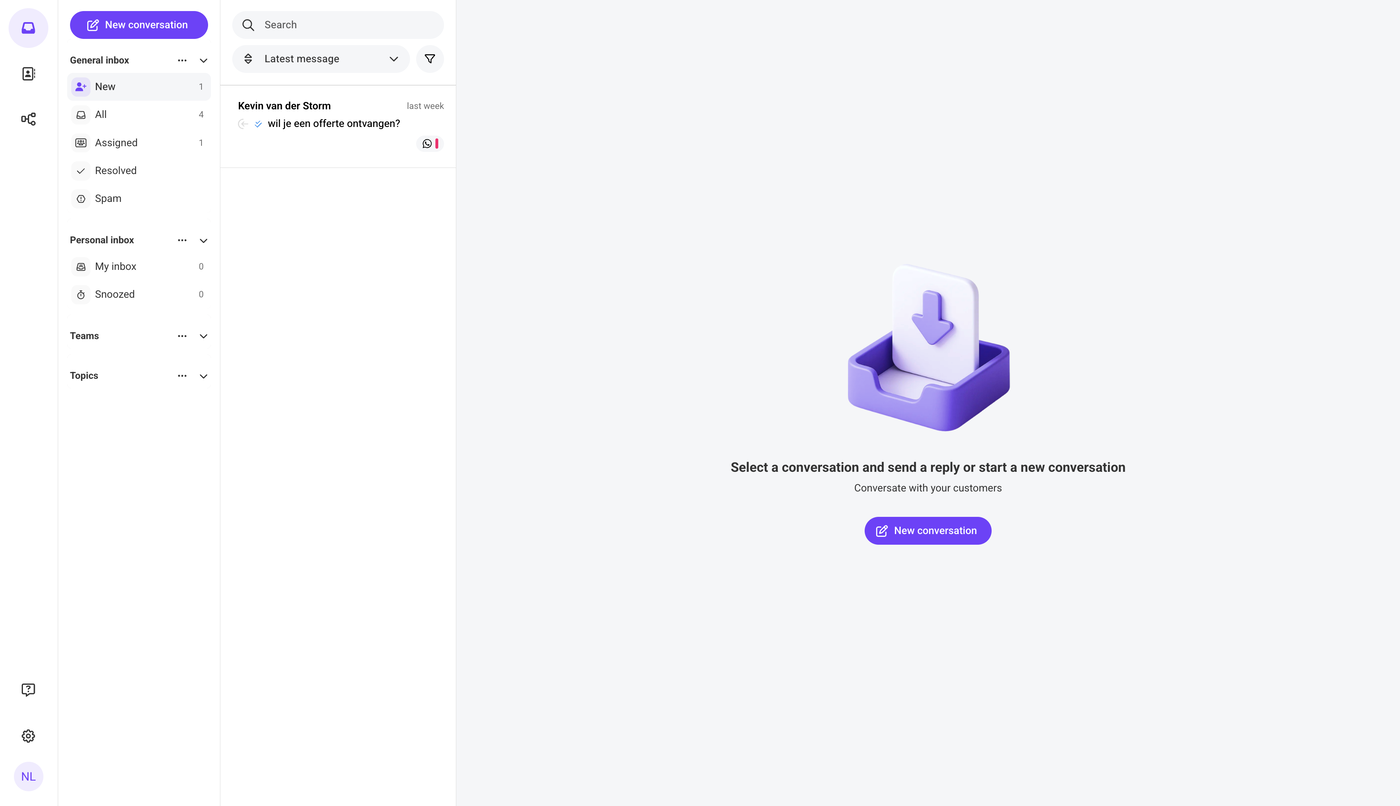
When you log in to the Saysimple platform, you land directly in the inbox.
A new conversation can only be started from the inbox. If you are on another page in the Saysimple platform, navigate back to the inbox first. You can do this by clicking the inbox icon in the upper-left corner of the screen.

2. Click “New conversation”
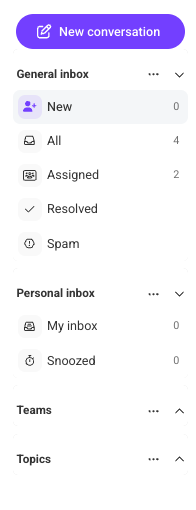
On the left side of the inbox, you can use the navigation menu.
At the top of this menu, click “New conversation.” This opens the screen where you can set up the new conversation.
3. Select the message recipient and sender channel
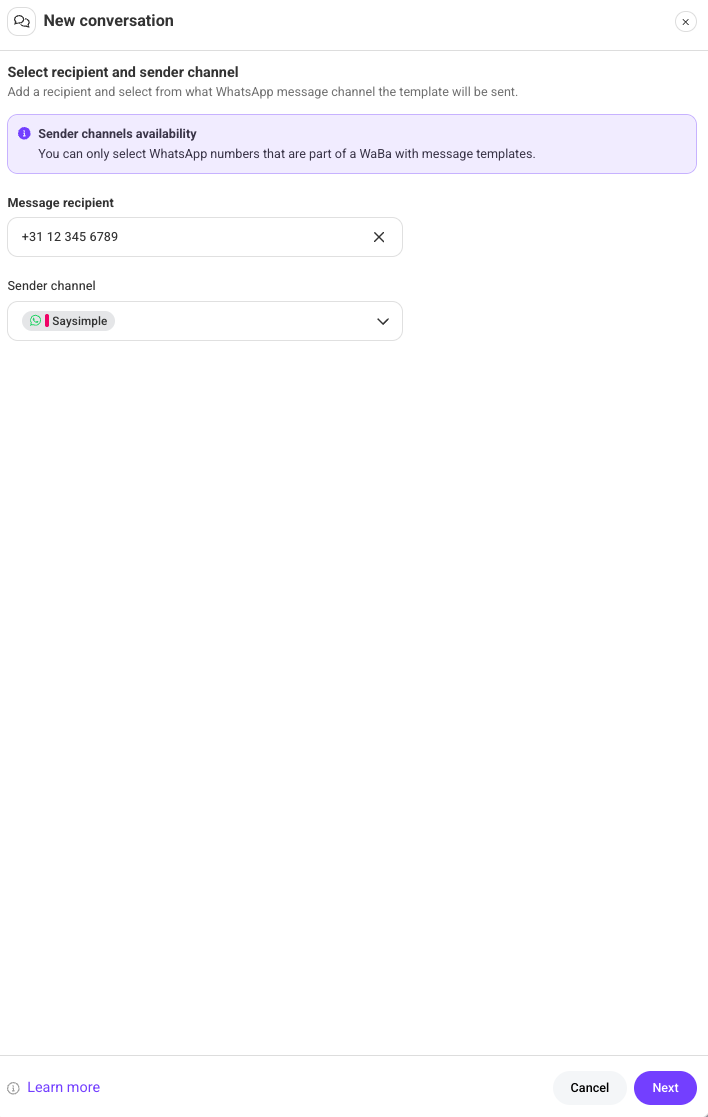
Select the message recipient. This is the contact that will receive the pre-approved WhatsApp template.
You can only send the template to one contact at a time. If the contact has not been created yet, create the contact first before starting the conversation. Need to add a contact first? Read more about how to add contacts here.
Next, select the sender channel. This determines which phone number is used to send the template.
When the recipient and sender channel are correct, click “Next” in the bottom-right corner of the page.
4. Select a WhatsApp template
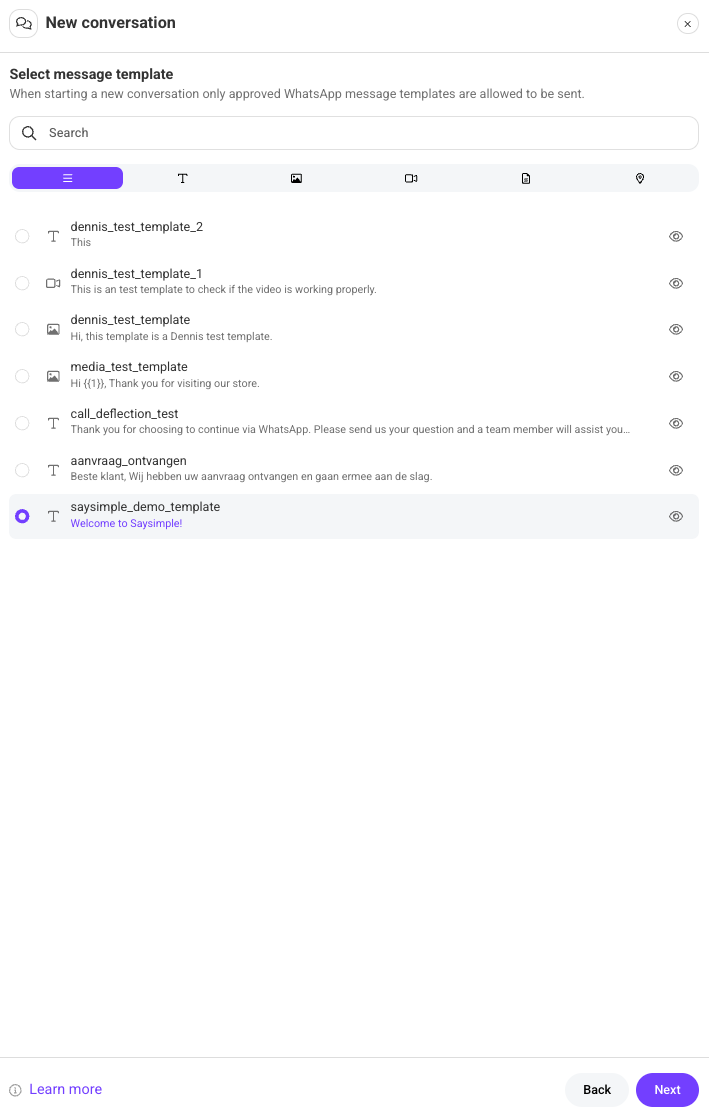
After selecting the recipient and sender channel, choose the pre-approved WhatsApp template you want to send.
You can find a template by using the search bar or by selecting one of the categories below the search bar. Need to create a WhatsApp template first? Read more about how to create WhatsApp templates here.
After selecting the correct template, click “Next” in the bottom-right corner of the page.
5. Fill in the variables
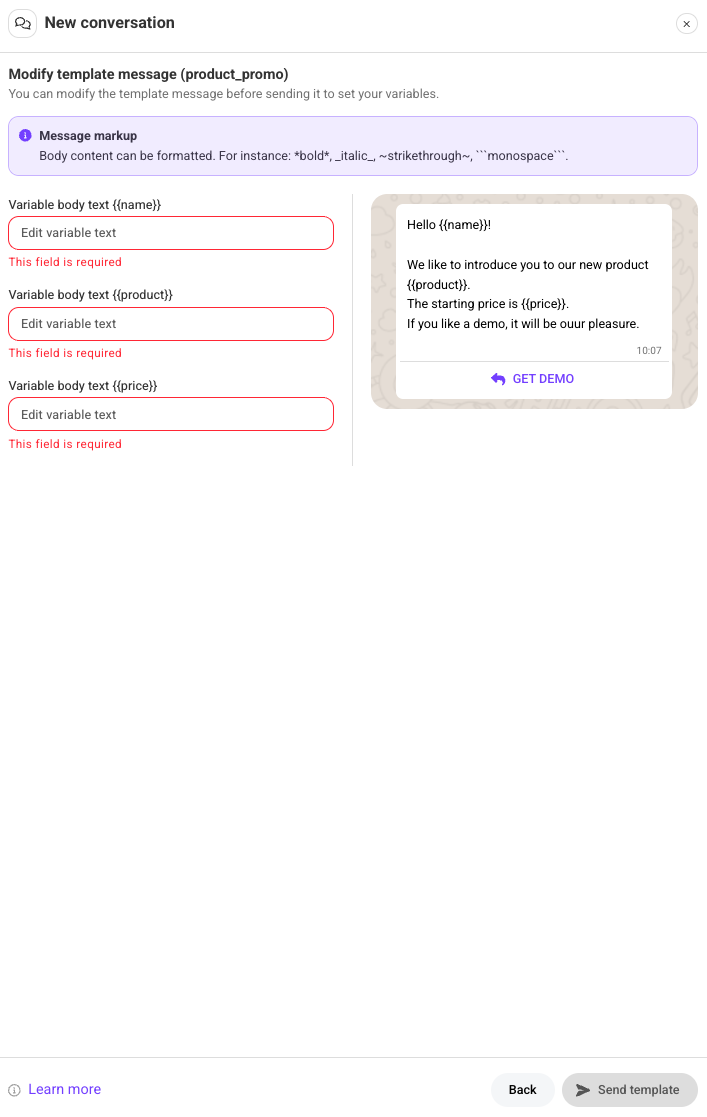
Some templates contain variables. These must be filled in before the template can be sent.
Depending on the template, the variables can be text fields or files.
While filling in the variables, you can view a preview of the template on the right side of the page. Use this preview to check whether the message looks correct before sending it.
When everything is complete, click “Send template” in the bottom-right corner of the page.
Note:
Once a WhatsApp template has been sent, it cannot be undone or deleted. Always check the recipient, sender channel, template, variables, and preview carefully before clicking “Send template.”
6. Conversation started
The template has now been sent, and a new conversation has been started in the Saysimple platform. Please note that the 24-hour conversation window does not start when the WhatsApp template is sent, but from the moment the client replies.