

How do I create WhatsApp templates
This article explains how to create and submit a WhatsApp message template using the template manager in Saysimple.
Before you start
Make sure that:
Your WhatsApp Business API account is connected in Saysimple
You know which category your message belongs to (Marketing or Utility)
You understand that WhatsApp may reject templates that violate their policies
Step-by-Step: Creating and Submitting Message Templates
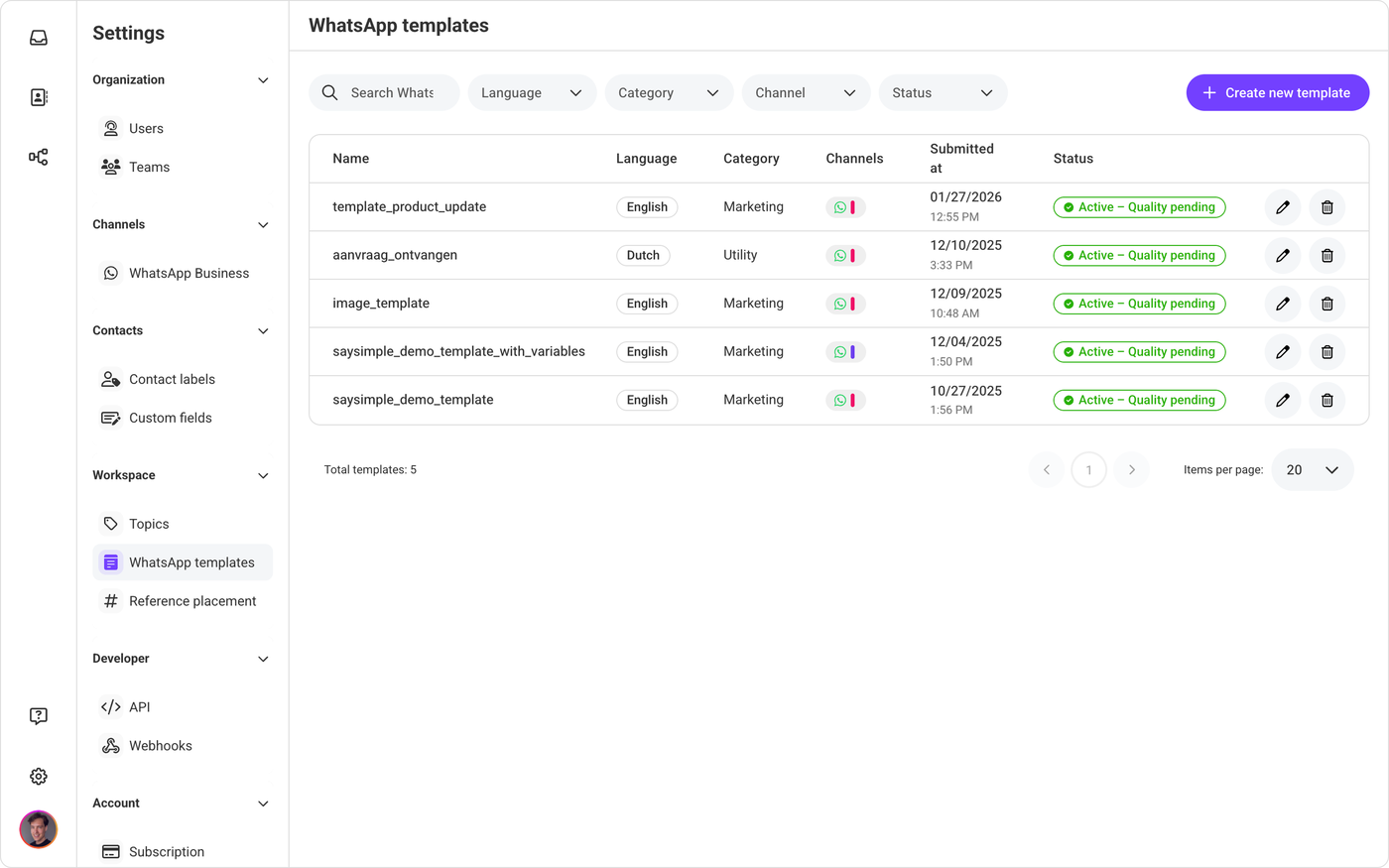
Step 1: Go to WhatsApp Templates
Open Settings
Navigate to Workspace
Click WhatsApp templates
Select + Create New Template
Step 2: Select the WhatsApp Account
Choose the correct WhatsApp Business Account.
The selected account determines:
Which phone numbers the template will be available for
Where the template will be submitted for approval
Step 3: Enter Template Name
Use lowercase letters, numbers, and underscores only
No spaces allowed. When using spaces, underscores will automatically be added.
Example:
discount_20_percent
The template name is internal and not visible to customers.
Step 4: Select Language
Choose the language of the template (e.g., English, Dutch, Spanish).
Each language version must be submitted separately.
Step 5: Select Category
Choose the correct template category:
Marketing – Promotions, offers, campaigns
Utility – Order updates, reminders, invoices
⚠️ Choosing the wrong category may result in rejection.
Step 6: Write the Template Message
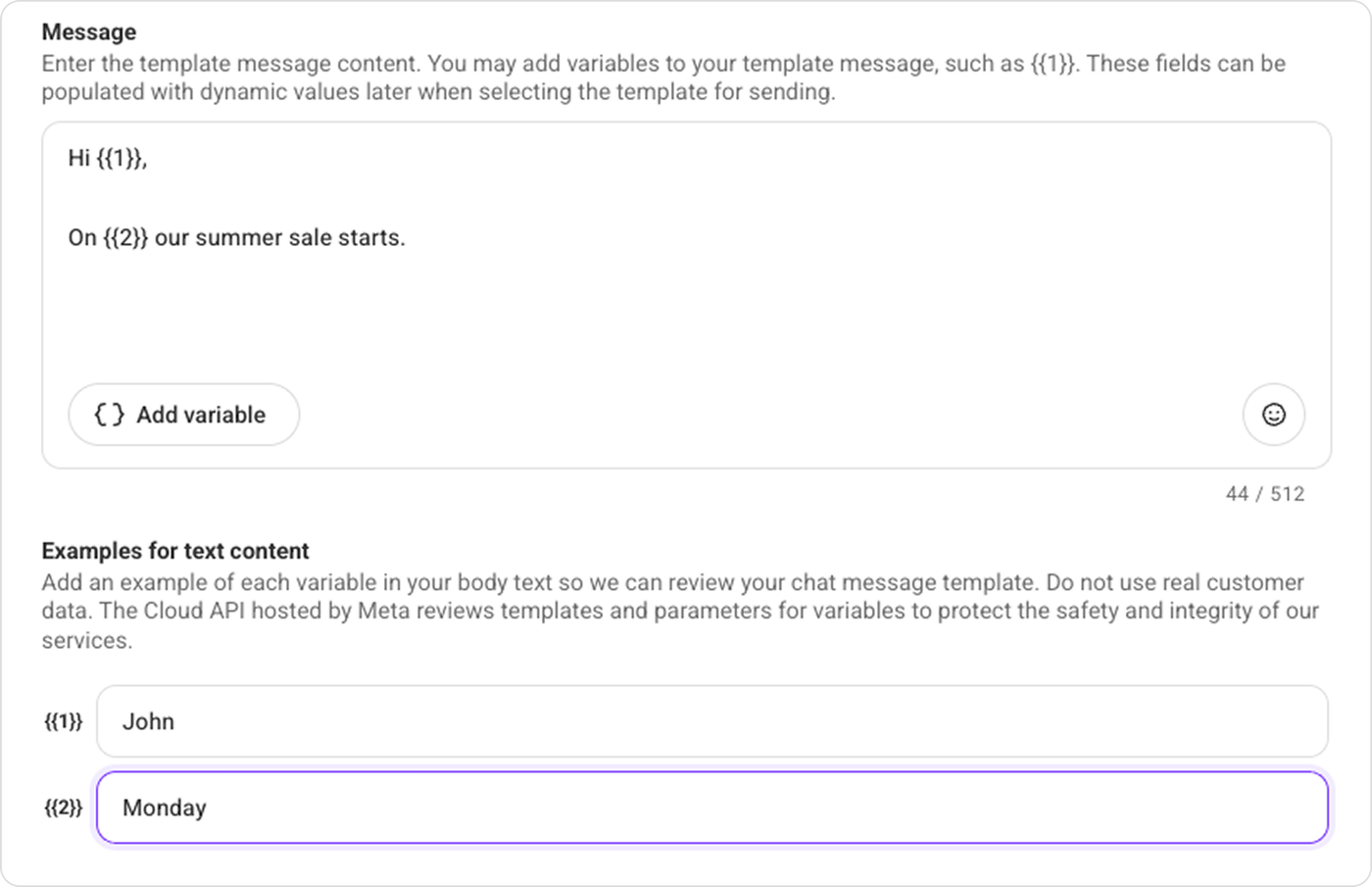
Enter the message text.
You can use variables to personalize the message:
Must use double curly brackets: {{1}}
Must be numbered sequentially ({{1}}, {{2}}, {{3}})
Cannot skip numbers
Cannot contain special formatting
Variable examples
Add an example of each variable in your body text so we can review your chat message template. Do not use real customer data. The Cloud API hosted by Meta reviews templates and parameters for variables to protect the safety and integrity of our services.
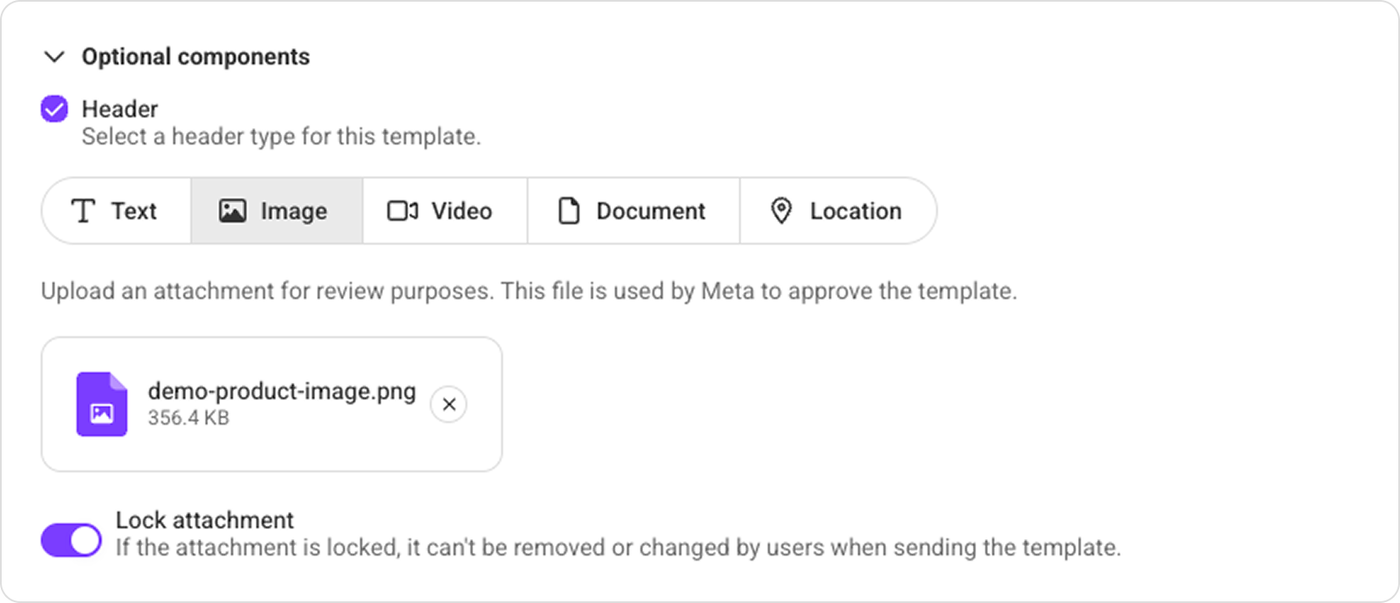
Optional message template components
You can enhance your template with additional elements.
Header (Optional)
The Header is optional and serves as the title or header of your template. You can choose one header type:
Text
Image
Video
Document
Location
Footer (Optional)
You can use the optional Footer for supplementary text-based information in your message template.

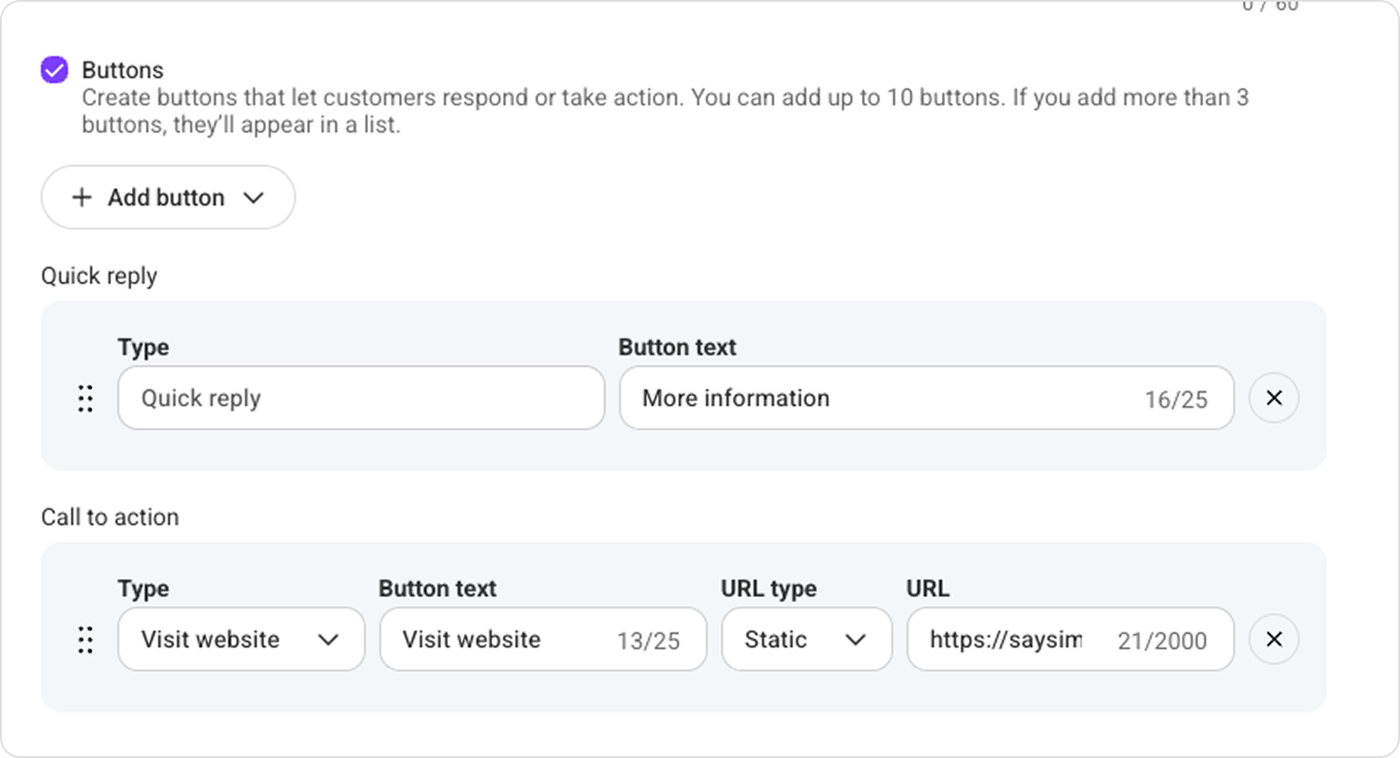
Buttons (Optional)
1. Call-to-Action Button
The Call-to-Action (CTA) button directs your client to take a specific action.
Can link to a website URL or initiate a phone call
Maximum of two URLs and one phone number per template
The URL can include a personalization parameter
2. Quick Reply Button
Quick Reply buttons allow clients to respond quickly with predefined answers.
Maximum of 10 Quick Reply buttons per template
Each Quick Reply button can contain up to 20 characters
Step 7: Submit the Template
After completing all fields:
Click Submit template
The template will be sent to WhatsApp (Meta) for review
Approval usually takes a few minutes up to 24 hours
You will see one of the following statuses:
Pending
Approved
Rejected
Common Reasons for Rejection
WhatsApp may reject templates if:
The category is incorrect
The content is promotional but marked as Utility
The message is vague (e.g., only variables without context)
Variables are not properly formatted
The template violates WhatsApp commerce or messaging policies
Best Practices for Approval
To increase approval chances:
Be clear and specific
Avoid excessive capitalization
Avoid spam-like language
Do not include shortened URLs
Make sure marketing messages include opt-out options
Ensure variables are logical and meaningful